, - Posted by Tommy Segoro
In MOSS 2007/2010, when you create a root site collection you can select the OOTB Publishing Site template. By default it enables approval workflow on the Pages list.
In MOSS 2007 we also have Collaboration Portal site template which we don’t have on Sharepoint 2010. This template is a publishing template except it doesn’t enable Approval Workflow on the Pages list.
I personally like to use the Collaboration Portal template for Intranet or simple Internet site because it has versioning turned on but not the approval workflow. I think Approval Workflow is a bit too over the top for an Intranet and simple Internet site.
There is this flag that can be set within ONET.XML to disable Approval Workflow:
<Property Key=”SimplePublishing” Value=”true” />
If you set that property to “false”, Sharepoint will enable approval worklow, “true” otherwise.
Therefore, in Sharepoint 2010 if you want to use Publishing Site template for Intranet instead of Enterprise Wiki, you can grab the original files from BLANKINTERNET site template, add it to your Visual Studio 2010 project and then change the ONET.XML as above. That will disable the Approval Workflow.
Hope this helps,
Tommy
, - Posted by Tommy Segoro
It simply….FAILED!
I created a test document library called Test Document Library.
I then created a SP workflow and associated with the list. I uploaded a new document, the workflow didn’t trigger. Fine, it might be because I haven’t set the “Start workflow automatically when an item is created”.
So I went back to SP Designer and ticked it:
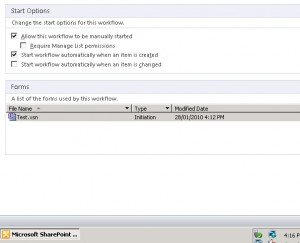
I then re-published the workflow.
This time I uploaded another new document…and…FAILED….it still didn’t trigger! On Workflow Settings the workflow was upgraded successfully but somehow that tickbox didn’t do anything!?!? Any ideas?
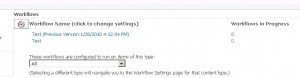
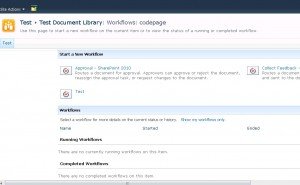
Hopefully this is fixed on the released version.
Cheers,
Tommy
, - Posted by Tommy Segoro
Microsoft has done a good job adding the functionality to re-ghost a modified page/file. Go to the URL below:
http://yoursharepointsiteurl/_layouts/reghost.aspx
Or alternatively you can access it from Sharepoint Designer 2010. Click on the site then on the ribbon click Reset to Template.
Cheers,
Tommy
, - Posted by Tommy Segoro
Hi everyone,
On my previous post:
I mentioned about how the deployment step configuration on Sharepoint VS 2010 BETA project template does not allow you to upgrade your solution.
Well, I’ve managed to develop the add-in based on Microsoft’s article. Really, to be honest, I ripped their code completely out of this article:
http://msdn.microsoft.com/en-us/library/ee256698(VS.100).aspx
So it’s a full credit to Microsoft. I only did this because MS doesn’t have any download link for that article.
Download it from http://vs2010spupgrade.codeplex.com/.
Below is the screenshot:
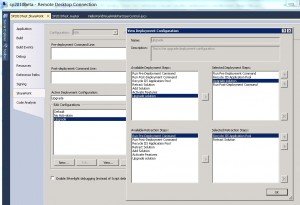
As you can see, there is a new deployment step called Upgrade.
Installation Instructions
1. Simply unzip.
2. Double-click on VSIX file to install.
Cheers,
Tommy
, - Posted by Tommy Segoro
We all know that content types, columns and list are the core or the “heart” of Sharepoint. I bet that there will be at least one content type or column that we need to create on every Sharepoint project we do.
I had a lot of problems before with MOSS 2007 especially when attaching a custom site content type on a list. When I tried to upgrade the site content type (ie. adding a field, etc), the content type attached on a list somehow is not updated. Yes we’ve got the “Update all content types inheriting from this type” but it never worked correctly. And worse, the list content type may get corrupted because of this!
When SP 2010 was first rumoured, I heard that the list content type is no longer a copy of the original. Therefore, any updates to the site content type will be guaranteed passed to ALL child content types attached to any list within the site/sub-sites.
Therefore, below is the list of tests I did (TITLE – EXPECTED RESULTS – ACTUAL RESULTS):
1. Deploy a content type feature using WSP – no error – no error.
2. Activate feature in site collection – content type is displayed in site content types – content type is displayed in site content type.
3. Adding site content type to a list – content type is added to the list together with the custom fields – content type is added to the list successfully together with the custom fields.
4. Adding a field to the site content type through Sharepoint GUI – field is added to ALL lists that are using that content type – ALL lists that are using that content type have the new field added successfully.
5. Modifying ContentTypes.xml feature manifest file in Visual Studio 2010 and adding a new field then re-deploy/upgrade the WSP – new field is NOT yet added until feature is de-activated and re-activated – new field does NOT appear just yet.
6. De-activating and re-activating content type feature – new field is added to the site content type and ALL lists inheriting from that content type – field is added ONLY on site content type, lists that inherit from it DO NOT have the new field!
7. Editing the list settings and add the new site column manually – site column is added to the content type successfully – received an error like below but the site columns is actually added successfully.

Unlike MOSS 2007, when I then tried to edit the properties of the newly added field after I received the above message, I could. In MOSS 2007 I simply couldn’t. The field is somehow corrupted.
Conclusion
Comparing to MOSS 2007, as far as content types and fields are concerned, there are a bit of improvements. At least I can now assure myself that content types and fields will not break as a result of feature deactivating/reactivating even if there are new fields added to it through either Sharepoint directly or Visual Studio WSP.
However, in terms of creating a copy of the content type on the list, it’s still the same. If you mouse over on the list content type you’ll be able to see your original content type ID + 00 + new GUID (ie. a copy of the content type). See below:
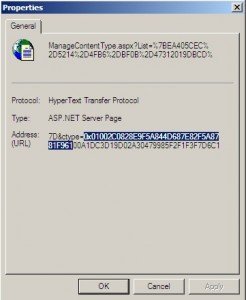
I will keep continuing my investigation and I’ll write further blog posts on this.
Cheers,
Tommy
We provides you the best Services in our themes.
Click on the link below to see a full list of clients which we have developed solutions and provided consultancy for.
We are solution-centered and not application-centered.
Being creative and having fun and yet still delivering a fantastic service is the center of our values.
TFS Consulting Services guarantees delivery that is within budget and deadline or you engage us for free.

Implementing IT solution does not have to be difficult. TFS Consulting Services has a lot of resources on planning and methodologies that will ensure successful delivery of your IT solution. TFS Consulting Services has been around in the web industry for more than 10 years and has experienced all the successes and failures of various type of IT deployment.

Do you need a technical resource? TFS Consulting Services can also provide you with technical resource for developing ASP.NET (C# and VB.NET), SharePoint (2003, 2007, 2010, 2013) and MS CRM applications. Our resource is an Microsoft Certified Personnel (MVP) and Microsoft Certified Technology Specialist (MCTS) in all ASP.NET, SharePoint and CRM.

Make sure your IT implementation is robust and scalable. TFS Consulting Services can provide consulting and advice on industry’s best practice on various web-related areas such as website security, design and usability, application-specific (such as SharePoint)’s best practice, Search Engine Optimisation (SEO), coding standards and many others.

Finally TFS Consulting Services provides you with solution development service. We mainly work with Microsoft technologies (ie. .NET and SQL Server), however we are also capable of developing with PHP and MySQL. If you ever need any business process automation, integration and solution development work, we are the trusted expert you should go to.
For more detailed service offerings please visit our Solutions page.
Tommy Segoro
tommy@tfsconsulting.com.au
+61 404 457 754
© TFS Consulting Services 2026. All rights reserved.